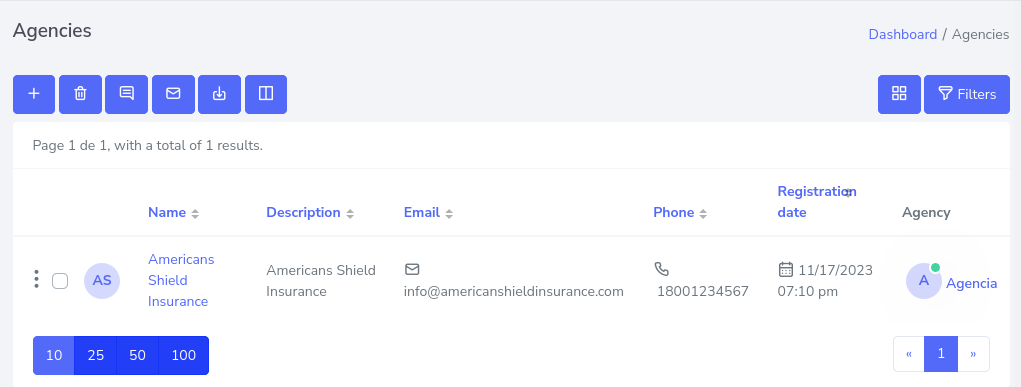
Route
- Go to Agency > All
There are two types of agencies that can be created within the system, which are Licensed Agencies and Referral Agencies. Please choose the option that you require.
To create an agency, first go to the left sidebar and press the Agencies button.
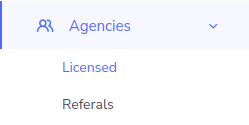
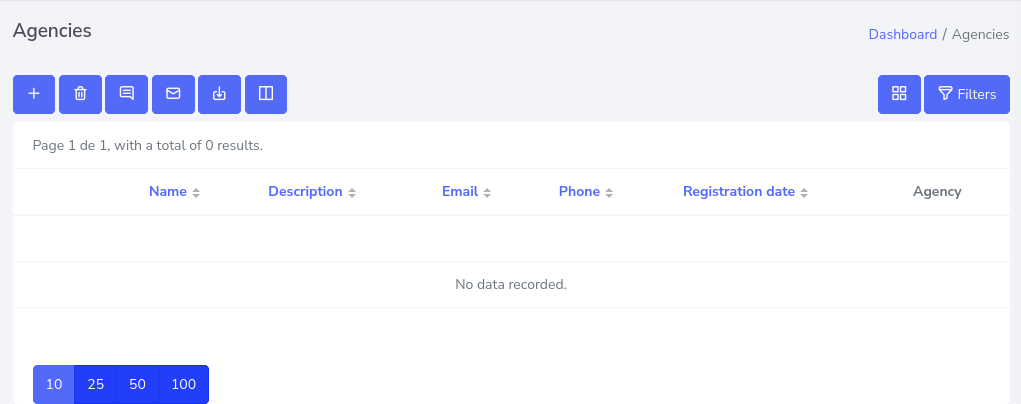
As shown in the previous figure, a dropdown menu will open, select the type of agency you want to create, and it will take you to a new window that will show a list of previously created agencies. In this case, there are no agencies created, so I will create a Licensed Agency (it can also be a Referral Agency since the process is the same).
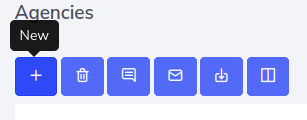
Now, to continue, click on the first button that contains the ‘+‘ symbol located in the top left corner of the table.
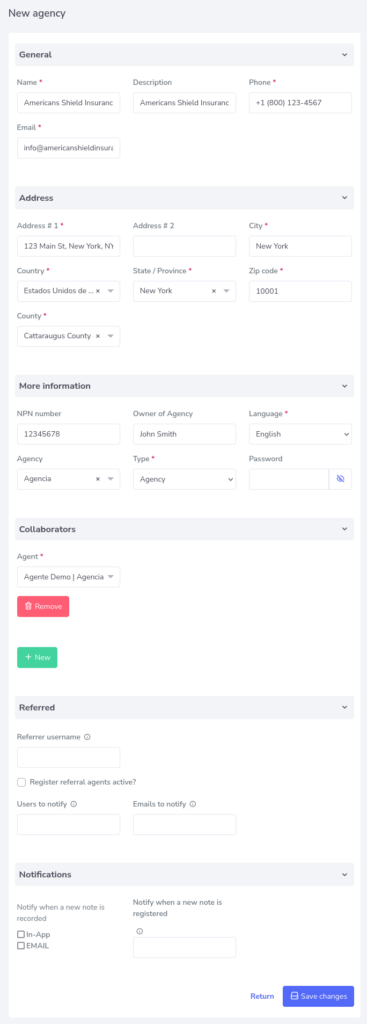
This will take you to a form that you must fill out with the indicated data, taking into account that the fields with an asterisk are mandatory and cannot be left blank.
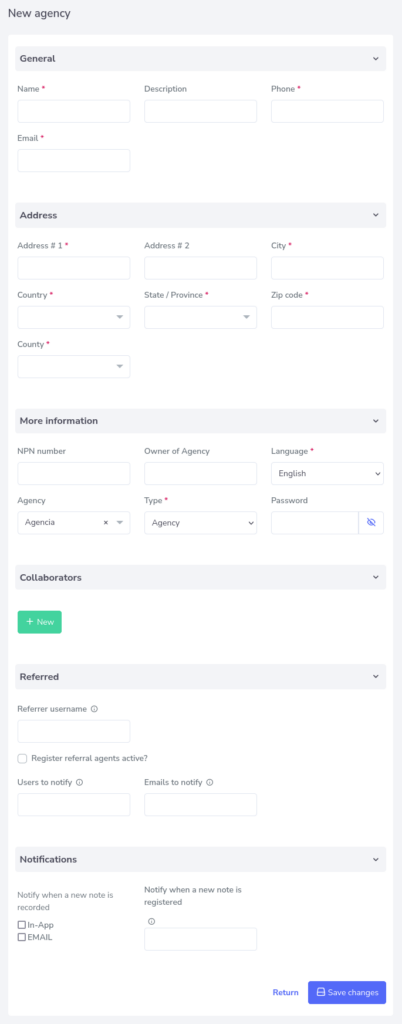
Form Description
As you can see in the image above the form is made up of 6 sections. Which are:
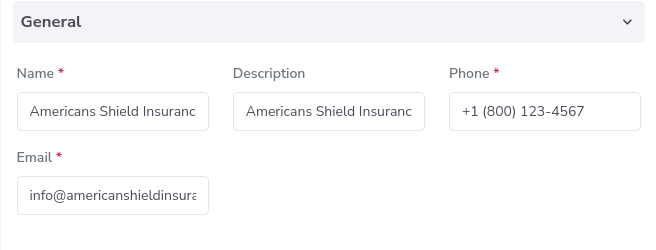
General
In this section, you will find basic information about the company to be created.
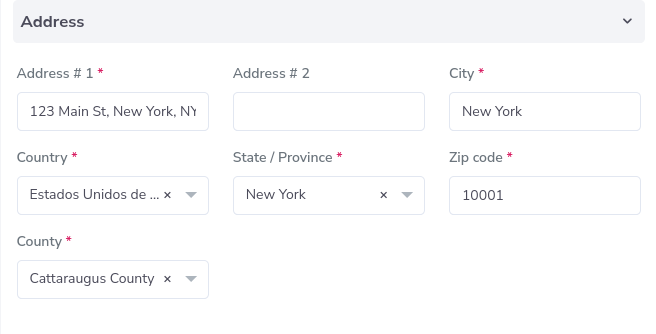
Address
The address part, as its name indicates, is the location of the company.
More information
Refers to agency-specific details.

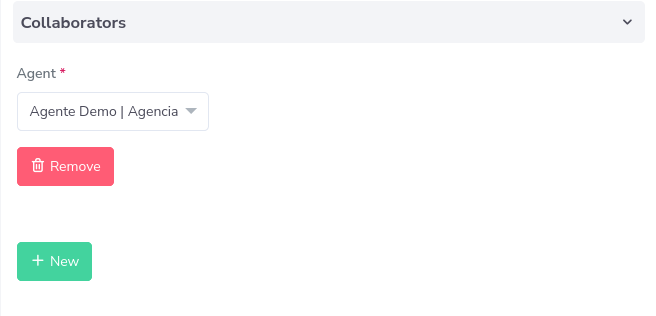
Collaborators
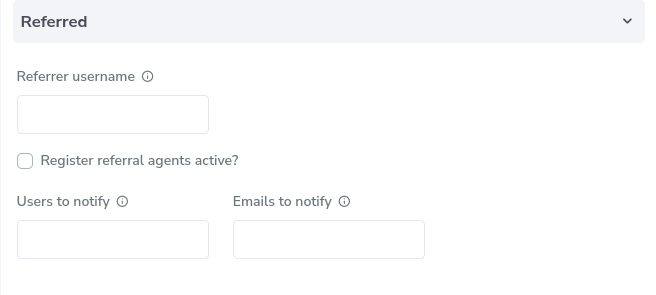
Referrer
This is to create the link with the user name that will refer.
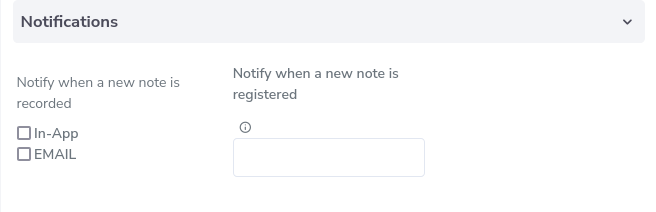
Notifications
On the left side, you can choose the means by which you wish to be notified, either by using the OneClickAgency notification system or by email.
The right part, is to indicate which users will be notified (Users that must be previously registered in the users section).
Result
After entering the requested data, it will look like this.
Click on the “Save changes” button and you have created a new agency.