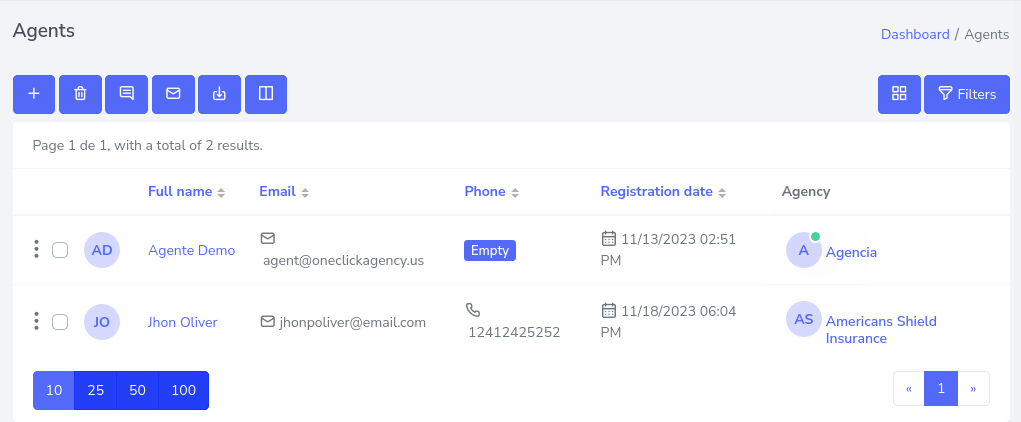
Route
- Go to Agent > All
To create a new agent, go to the left side menu, look for the option that says Agents, then click, to display the options that are, Licensed and Referrers.
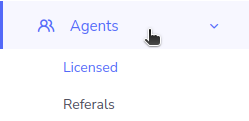
Select the option you want to create, in this case, a licensed agent will be created.
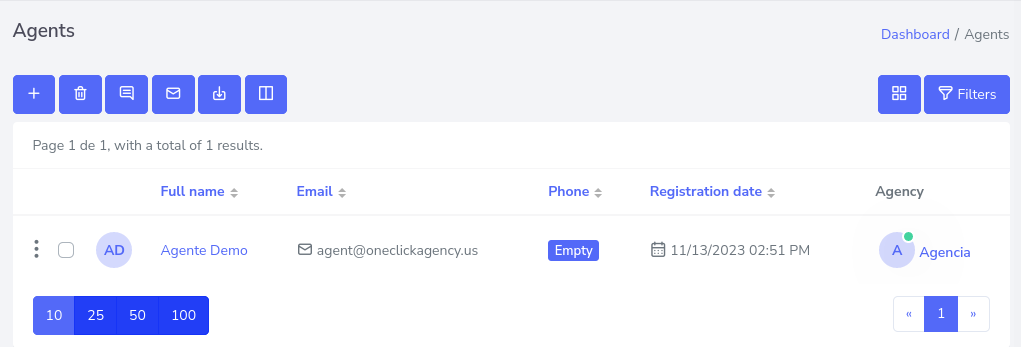
After clicking, a table with the created agencies will be displayed, if you do not have an agency created, it should be empty.
To continue with the creation, press the “+” button at the top of the table, specifically the first one from left to right.
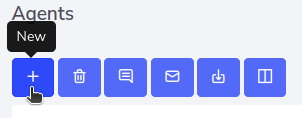
Now you should see a window containing a form that you must fill in with the required information, taking into account that the fields with the “*” symbol must be filled in to save the information.
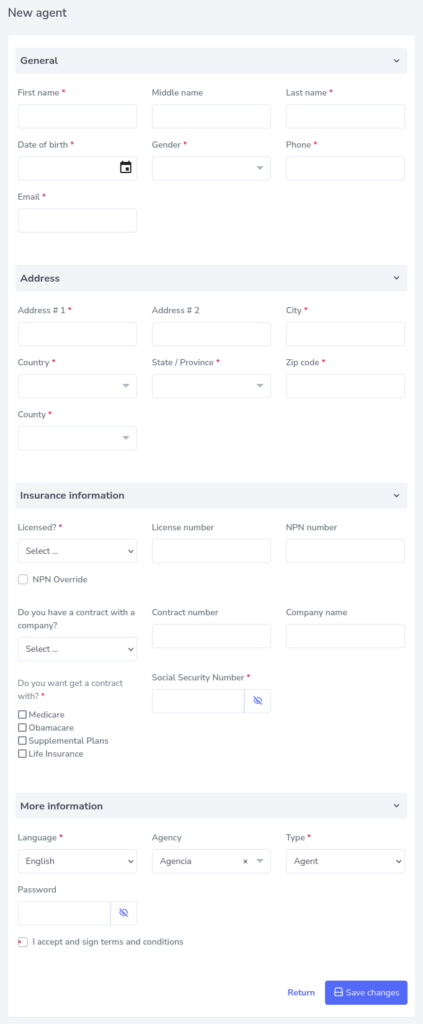
Form description
The form has 4 sections of which are:
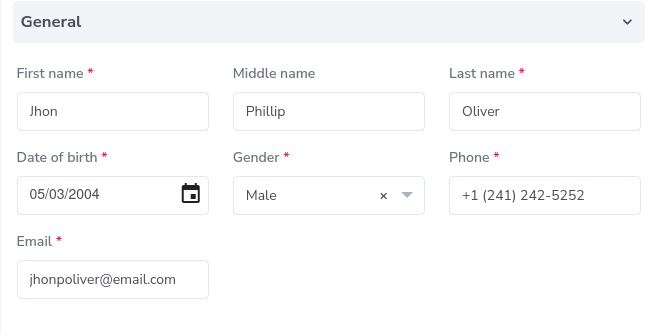
General
This section has basic requirements detailing the agent.
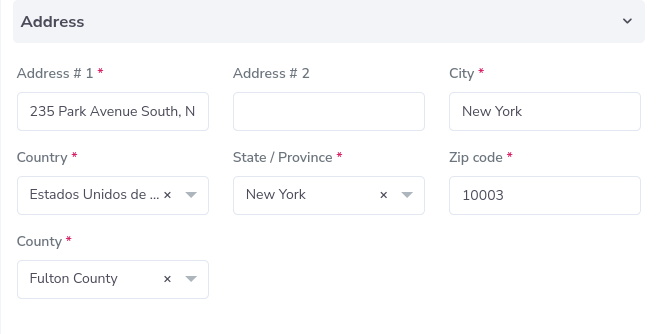
Address
Enter agent’s address
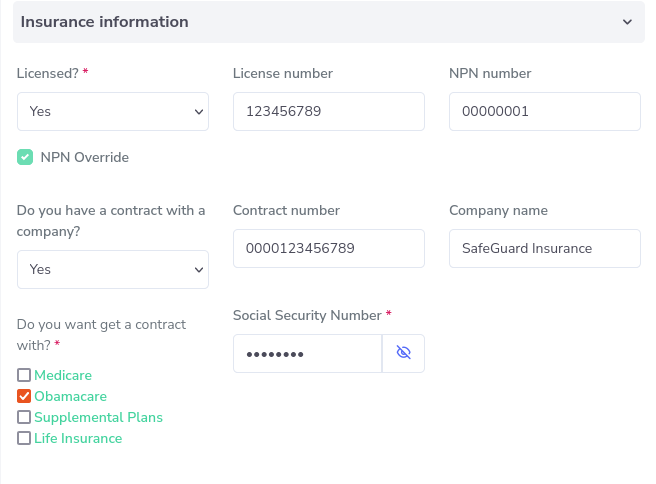
Insurance Information
Here you place the insurance information.
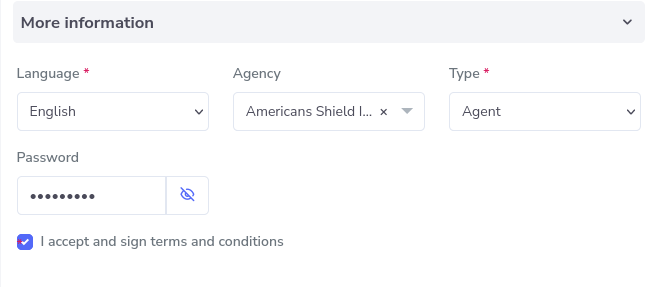
More Information
This information is used to know the agent’s language, agency and type of agent.
Result
The form is filled in with the data of the new agent to be created and it would look something like this.
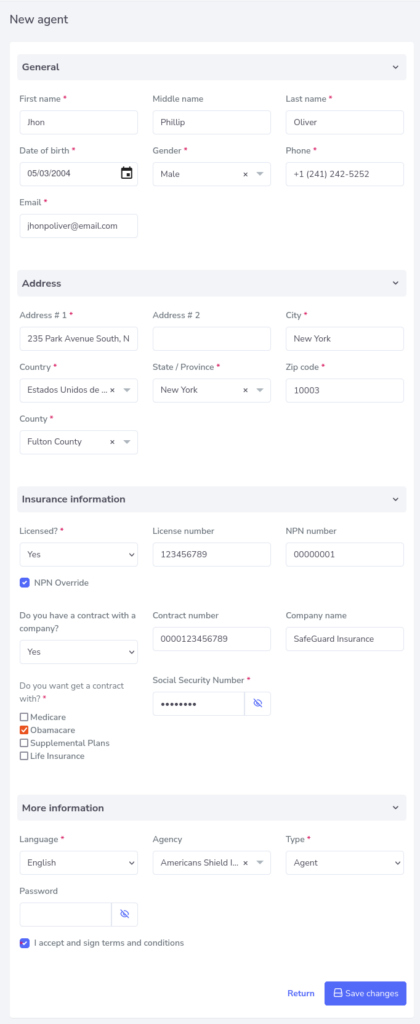
Once you have finished filling in the data, click on the save changes button and that’s it, a new agent is created.