Route
- Go to Statement > All
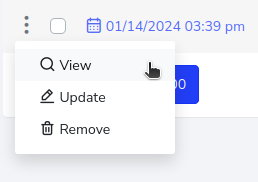
To perform this action, you need to go to the specific report and press the 3-dot button located on the left side, which will unfold a pop-up menu, and you must press the button that says “View”.
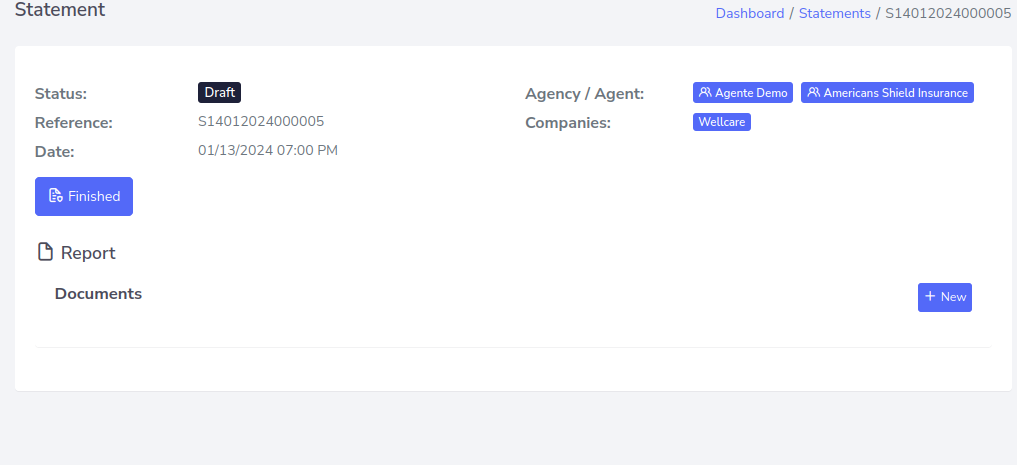
You will be redirected to a new page containing the details of the report.
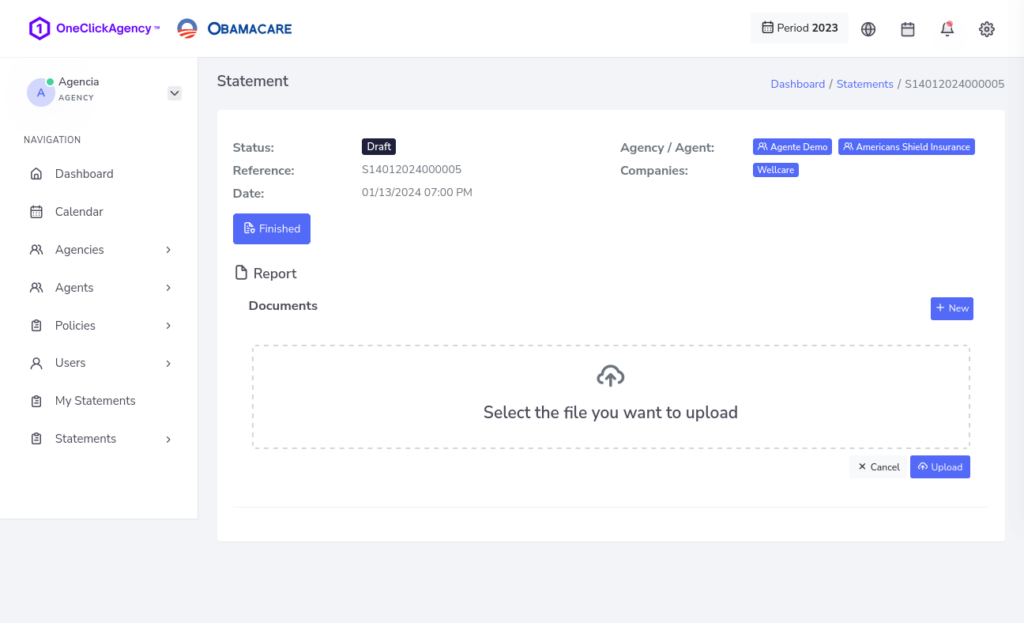
To upload information, click on “New” located at the bottom left and then you will be able to upload a file. To do so, press the button that says “Select the file you wish to upload”. Here you’ll upload the document you want and once you’ve finished selecting it, press the “Upload” button.
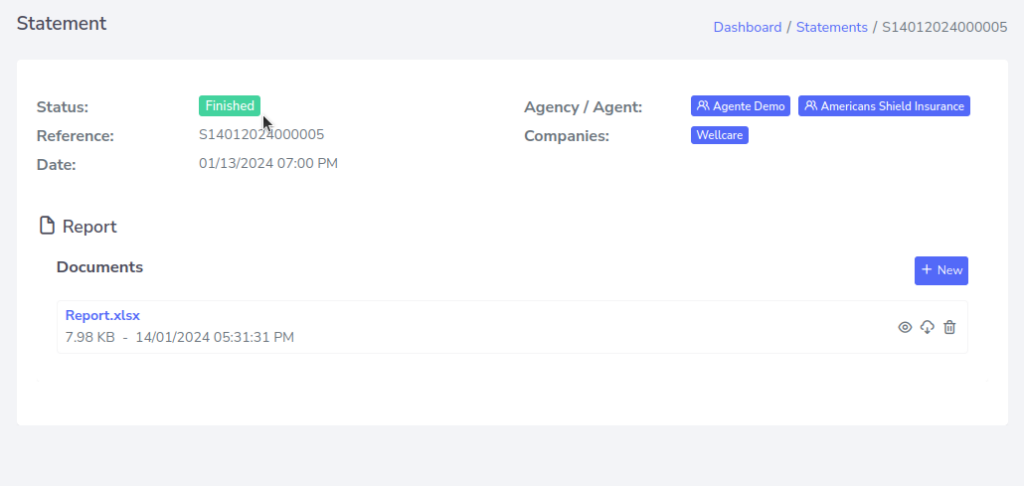
In this case, a file named “Report.xlsx” was uploaded.
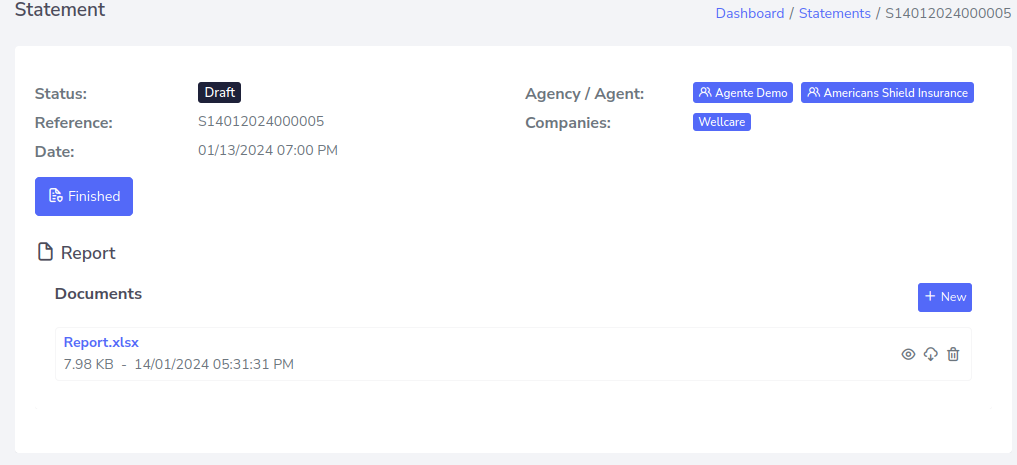
You can view, download, or delete it with the options you have at the bottom left.
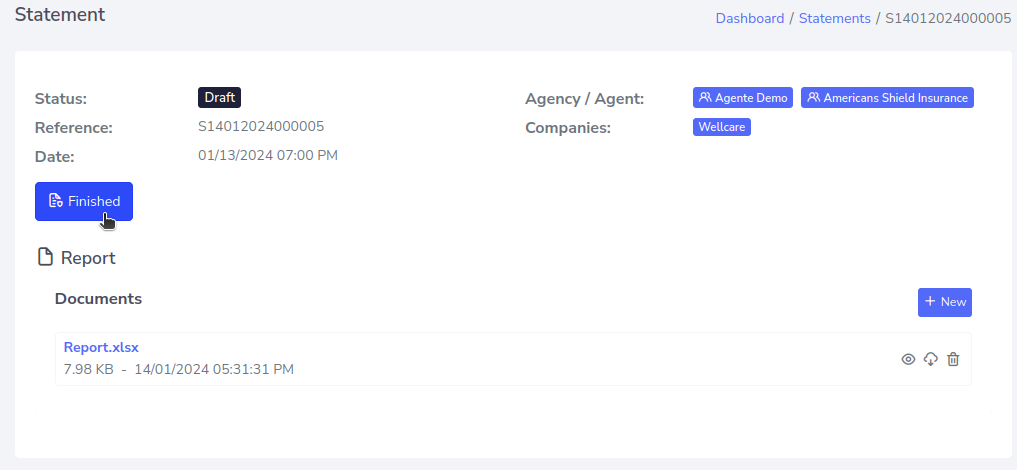
Once all the previous steps are completed, proceed to finalize the report by clicking the button that says “Finalize”.
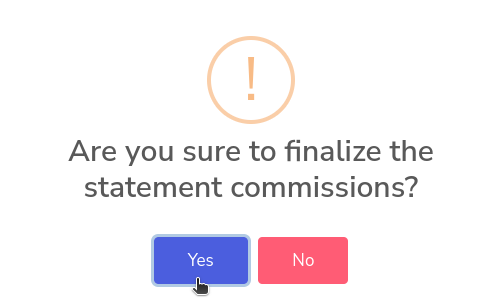
It will ask for confirmation, which you should accept.
Now it will appear as completed.